What Is VirtualBox Extension Pack? Features, Installation, and Benefits Explained

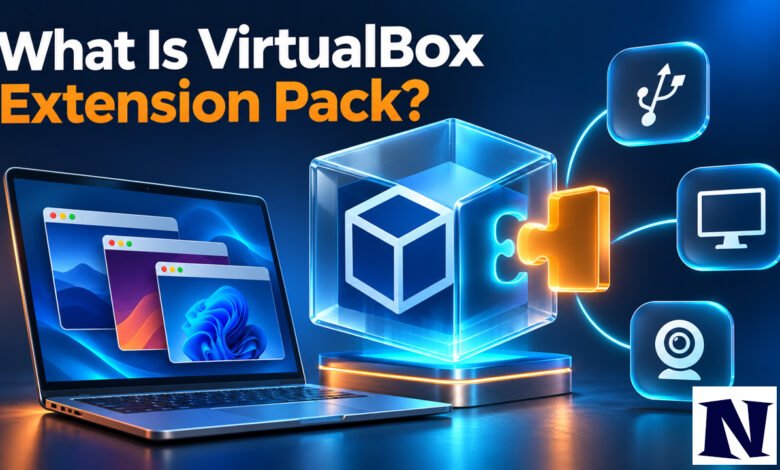
What Is VirtualBox Extension Pack VirtualBox Extension Pack is an optional add-on package that adds extra features to the free Oracle VirtualBox hypervisor. The base VirtualBox program already lets you create and run virtual machines on Windows, Linux, macOS, or Solaris hosts. The Extension Pack unlocks additional capabilities such as remote desktop access through VRDP, host webcam passthrough, Intel PXE network booting, AES disk encryption, and Oracle Cloud Infrastructure integration.
Many users install it when they need these advanced tools. The pack installs on the host computer, not inside the virtual machines. It must match the exact version of VirtualBox you are running. Without it, you can still use VirtualBox for most everyday tasks, but certain professional or specialized features remain unavailable.
What Is VirtualBox Extension Pack
Oracle splits VirtualBox into two main parts. The base package is open source and licensed under GPLv3 (starting with version 7.0). It includes the core hypervisor, networking, storage controllers, snapshots, and basic USB support. The Extension Pack is a separate download with a .vbox-extpack file extension. It is proprietary and adds features that Oracle keeps outside the open-source base.
The Extension Pack works globally on the host. Once installed, its features become available for any virtual machine you create. It does not replace Guest Additions, which are a different set of drivers and tools installed inside each guest operating system to improve performance and integration.
Official documentation lists the main additions as VirtualBox Remote Desktop Protocol (VRDP) support, host webcam passthrough, Intel PXE boot ROM, disk image encryption using AES, and cloud integration features. Older versions also included USB 2.0 and USB 3.0 controllers. Starting with VirtualBox 7.0, those USB controllers moved into the free base package, so the Extension Pack is no longer required solely for modern USB devices.
Key Features of the VirtualBox Extension Pack
The most useful feature for many people is VRDP. This built-in remote desktop server lets you connect to a virtual machine’s display from another computer using standard RDP clients. You do not need a full desktop environment running on the host or special guest software beyond what VirtualBox provides. It is helpful for headless servers or when you want to manage several virtual machines remotely.
Host webcam passthrough allows a guest operating system to use the host computer’s webcam even if the guest lacks native drivers for that camera. This can solve compatibility problems when testing software that needs a camera across different operating systems.
Intel PXE boot ROM support enables network booting. A virtual machine can start from a PXE server on the network, which is useful for testing operating system deployments, diskless clients, or automated installation environments.
Disk image encryption protects virtual hard disks with AES encryption (typically 128-bit or 256-bit keys). The encryption is transparent to the guest operating system. If someone copies the virtual disk file, the data remains encrypted without the password or key.
Additional features include improved Oracle Cloud Infrastructure integration for exporting and importing virtual machines to Oracle Cloud, plus other storage and management enhancements that vary slightly by version.
How to Install the VirtualBox Extension Pack
First check your VirtualBox version. Open VirtualBox, go to Help, and select About VirtualBox. Note the full version number. Download the matching Extension Pack from the official VirtualBox website at virtualbox.org. Using a mismatched version is the most common reason installation fails.
On Windows or macOS, double-click the downloaded .vbox-extpack file. VirtualBox opens and asks you to install it. Accept the license agreement and provide administrator credentials if prompted. On Linux, you can also double-click the file if VirtualBox is properly associated with it, or use the command line.
For command-line installation on any platform, open a terminal and run:
VBoxManage extpack install –replace Oracle_VM_VirtualBox_Extension_Pack-version.vbox-extpack
Replace the filename with the exact name of the file you downloaded. The –replace option updates an existing pack cleanly. After installation, restart VirtualBox. You can verify success by going to File > Preferences (or Tools > Extensions in newer versions) or by running VBoxManage list extpacks.
The process is the same across Windows, macOS, Linux, and Solaris. Always download the pack from the official site to avoid security risks.
VirtualBox Extension Pack vs Guest Additions
These two packages serve different purposes and are often confused. The Extension Pack installs on the host operating system and adds features to VirtualBox itself. Guest Additions install inside each virtual machine and improve performance, mouse integration, shared folders, better video drivers, and time synchronization.
You can use one without the other. Most users benefit from both. Guest Additions work on the free base VirtualBox. The Extension Pack is optional and only needed for the extra host-level features listed earlier. Installing Guest Additions does not give you VRDP, disk encryption, or webcam passthrough. Those still require the Extension Pack.
Licensing and Availability
The base VirtualBox package is free for personal, educational, and commercial use under the GPLv3 license. The Extension Pack has historically been covered by the Personal Use and Educational License (PUEL) or similar terms. Personal and educational use is free. Commercial or business use of the Extension Pack typically requires an Oracle VirtualBox Enterprise license.
Always read the license agreement that appears during installation. Licensing terms can change between major versions, so check the current Oracle documentation or the license text for the version you download. The Extension Pack remains freely downloadable from the official site for those who qualify under the personal/educational terms.
Common Use Cases
Developers and testers use the Extension Pack when they need remote access to virtual machines running on a central server. System administrators rely on disk encryption to protect sensitive virtual environments that move between machines or storage locations. Educators and students testing network boot environments or operating system deployment use the PXE support.
Anyone who needs to pass a host webcam into a guest for application testing finds the passthrough feature valuable. Organizations that use Oracle Cloud Infrastructure can simplify moving virtual machines between local hosts and the cloud.
For simple desktop virtualization—running a Linux guest on Windows to test software or browse the web—the base package is usually enough. The Extension Pack becomes relevant once you need remote display, encryption, or specific advanced controllers.
Important Tips and Troubleshooting
Always match the Extension Pack version exactly to your VirtualBox version. After upgrading VirtualBox, download and install the new matching Extension Pack. Old packs can stop working or cause errors.
If installation fails, check that you have administrator rights and that no virtual machines are running. Close VirtualBox completely, then try again. On Linux, ensure the vboxdrv kernel module is loaded correctly.
After installing the pack, some features require additional configuration inside the virtual machine settings. For example, enable the USB controller and add specific devices, or set a password under Disk Encryption in the General settings of a virtual machine. VRDP must be enabled in the Display settings and a port chosen before you can connect remotely.
Keep VirtualBox and the Extension Pack updated for security and compatibility. Oracle releases updates regularly. Removing the Extension Pack is straightforward through the same Extensions preferences window or with VBoxManage extpack uninstall.
Conclusion
VirtualBox Extension Pack is a useful optional component that expands what the free VirtualBox hypervisor can do. It adds remote desktop access, webcam passthrough, network booting, disk encryption, and cloud features without requiring you to switch to a different virtualization platform. While the base package handles most everyday virtual machine needs, the Extension Pack becomes valuable for remote management, security-conscious setups, and specialized testing.
Installation is straightforward once you download the correct matching version. Understanding the difference between the Extension Pack and Guest Additions helps you decide what to install. For personal use the pack is free under the applicable license; commercial environments should review Oracle’s current terms. With the right version installed and features configured, the Extension Pack gives VirtualBox the extra capabilities many users need.
Frequently Asked Questions
What is the main purpose of the VirtualBox Extension Pack?
It adds advanced features such as VRDP remote display, host webcam passthrough, PXE network boot, AES disk encryption, and Oracle Cloud integration that are not included in the free open-source base package.
Do I need the Extension Pack for USB 3.0 support?
Not on VirtualBox 7.0 and later. USB 2.0 and USB 3.0 controllers moved into the base package starting with version 7.0. On older versions (6.1 and earlier), the Extension Pack was required for those USB controllers.
Is the VirtualBox Extension Pack free?
It is free for personal and educational use under the license terms shown during installation. Commercial or business use generally requires a paid Oracle VirtualBox Enterprise license. Always check the current license for your version.
How is the Extension Pack different from Guest Additions?
The Extension Pack installs on the host and adds VirtualBox features. Guest Additions install inside each virtual machine and improve performance, graphics, shared folders, and mouse integration. They are separate packages.
Why does the Extension Pack fail to install?
The most common reason is a version mismatch. The Extension Pack must exactly match your installed VirtualBox version. Download the correct file from the official virtualbox.org site and try again after closing all virtual machines.
See more amazing Information visit Novira Magazine