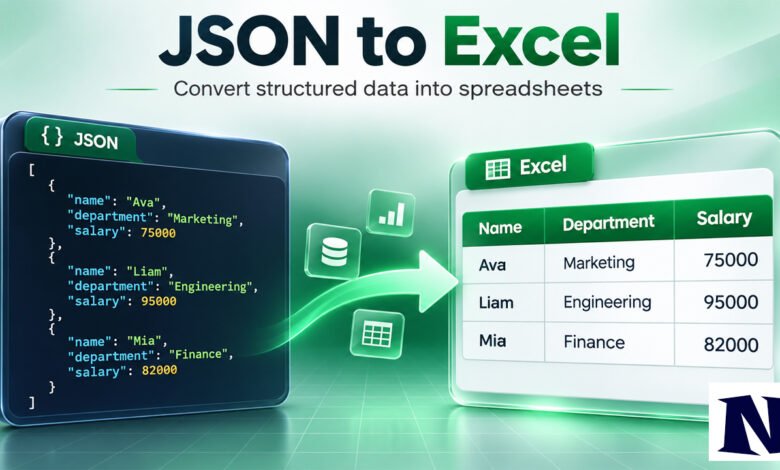
People search for JSON to Excel because they receive data from APIs, databases, or web applications in JSON format and need it in a spreadsheet for analysis, reporting, or sharing. JSON works well for machines, but most users prefer Excel for filtering, formulas, charts, and easy viewing. This guide shows the practical ways to turn JSON into Excel files using online tools, Excel’s built-in features, and Python. Each method suits different needs, from one-time quick jobs to regular automated conversions.
JSON to Excel conversion is straightforward once you choose the right approach for your file size, data complexity, and privacy requirements. The three main options covered here handle flat and nested JSON reliably.
What Is JSON and Why Convert It to Excel?
JSON stands for JavaScript Object Notation. It is a text-based format that stores data as key-value pairs and arrays. Developers use it because it is lightweight and easy for programs to read. Web APIs often return results in JSON, and many software tools export data the same way.
Excel, on the other hand, organizes data into rows and columns. This makes it simple to sort, filter, calculate totals, create pivot tables, and build charts. Converting JSON to Excel bridges the gap between machine-readable data and human analysis. Teams can review numbers without writing code, and managers can open a familiar spreadsheet instead of raw text.
The conversion process maps JSON keys to column headers and JSON values to cells. Nested objects (data inside data) become additional columns or separate sheets depending on the tool. Arrays of objects typically become multiple rows.
Best Methods to Convert JSON to Excel
Three approaches work for most people. Online converters require no installation and finish in seconds, but they are best for non-sensitive data and smaller files. Excel Power Query is built into Microsoft Excel 2016 and later (and Microsoft 365). It processes files locally, supports refreshing when the source changes, and handles nesting through a visual editor. Python with the pandas library is free, works on any operating system, and scales well for large or repeated jobs. It needs a short script but offers the most control.
Choose online tools for occasional small files, Power Query when you work mainly in Excel, and Python when you need automation or process many files. All three methods produce standard .xlsx files that open in Excel, Google Sheets, or LibreOffice.
How to Convert JSON to Excel Using Online Tools
Online converters let you paste JSON text or upload a .json file and download an Excel file within moments. Most sites detect the structure automatically and flatten nested objects into columns using dot notation (for example, address.city).
To use one, open a trusted converter site in your browser. Paste your JSON or drag the file into the upload area. Review the preview if the tool shows one, then click the convert or download button. Save the resulting .xlsx file. Popular free options exist, and many process data in the browser so the file never leaves your computer.
These tools work well for files under about 10 MB and simple structures. Larger files may slow the browser or hit limits. Avoid uploading confidential customer or financial data to sites that process files on their servers. Client-side tools that run entirely in the browser are safer for privacy. After download, open the file in Excel and check column names and data types.
Convert JSON to Excel with Power Query in Excel
Power Query is the most reliable method for people who already use Excel. It is available in Excel 2016 and later on Windows, and in recent Microsoft 365 versions on Mac (with some feature differences). The process stays local, so data never leaves your computer.
Open a blank workbook. Go to the Data tab, choose Get Data, then From File, and select From JSON. Browse to your .json file and click Import. Power Query Editor opens and shows the structure. If the top level is a list of records, click To Table. Expand nested columns by clicking the expand icon in the column header and selecting the fields you need. You can rename columns, filter rows, or change data types at this stage. When finished, click Close & Load to place the table in the worksheet.
Power Query remembers the steps. If the original JSON file updates, right-click the table and choose Refresh to pull the new data. This makes it ideal for monthly reports or recurring API exports. Deeply nested JSON requires expanding one level at a time, which takes a few extra clicks but remains visual and does not need code.
Convert JSON to Excel Using Python
Python provides a flexible option for developers, analysts who run regular jobs, or anyone handling large or complex files. The pandas library reads JSON and writes Excel with a few lines of code. You also need the openpyxl package to create .xlsx files.
First install the libraries by running pip install pandas openpyxl in a terminal or command prompt. Then create a short script. A basic version looks like this:
import pandas as pd import json
with open(“data.json”, “r”) as f: data = json.load(f)
df = pd.json_normalize(data) df.to_excel(“output.xlsx”, index=False)
Save the script, place your JSON file in the same folder, and run it with python scriptname.py. The result appears as output.xlsx. pd.json_normalize flattens nested objects automatically. For arrays of objects it creates one row per item. You can add more lines to rename columns, drop fields, or handle missing values before writing the file.
Python works well for files larger than what browsers or Excel comfortably handle in one step, and it can loop through many JSON files in a folder. It runs on Windows, Mac, and Linux. The learning curve is higher if you have never used Python, but the core conversion stays simple.
Handling Nested JSON Structures
Most real-world JSON contains nesting. An order object might contain a customer object and a list of items. Online tools usually flatten these into columns such as customer.name and items.0.product. Power Query requires you to expand each level manually using the expand button. Python’s json_normalize does the flattening in one step and lets you control the separator character.
If the nesting is very deep or irregular, you may need to clean the result after conversion. In Excel you can use Power Query steps or formulas to split columns further. In Python you can write additional code to explode lists into separate rows if needed. Always check a few sample rows after conversion to confirm the structure matches your expectations.
Common Problems and Solutions When Converting JSON to Excel
Invalid JSON is the most frequent issue. Missing commas, extra commas, or unclosed brackets stop parsers. Use a free online JSON validator to check the file before converting. Large files can exceed browser memory or Excel’s row limit of roughly one million rows. Split oversized JSON into smaller chunks or use Python for processing.
Date and number formats sometimes arrive as text. In Power Query you can change the data type of a column. In Python, pandas usually detects numbers correctly, and you can specify date parsing if needed. Encoding problems (special characters showing incorrectly) are rare with modern tools but can be fixed by ensuring the JSON file is saved as UTF-8.
Privacy remains a concern with online tools. Prefer Power Query or Python when the data is sensitive. If you must use a web converter, choose one that states it processes files client-side.
Tips for Accurate JSON to Excel Conversion
Start with a small sample of your JSON to test the method before converting the full file. Review column headers after conversion and rename any that are unclear. Keep a backup of the original JSON. For repeated work, save the Power Query steps or the Python script so you can reuse them. Document any manual cleaning steps so others on your team can follow the same process.
Conclusion
Converting JSON to Excel is a common task that no longer requires specialized software or advanced coding skills. Online converters handle quick one-off jobs, Power Query gives Excel users a powerful local option with refresh capability, and Python offers scalable automation for larger or complex datasets. Pick the method that matches your file size, privacy needs, and how often you will repeat the conversion. Once the data sits in Excel, you can analyze it with familiar tools and share results easily with colleagues.
Frequently Asked Questions
Can I convert JSON to Excel without installing anything?
Yes. Free online converters work in any modern browser. Paste or upload your JSON and download the Excel file. These are suitable for small, non-sensitive files.
Does Excel have a built-in way to open JSON files?
Excel 2016 and later includes Power Query, which imports JSON directly through Data > Get Data > From File > From JSON. You expand nested fields in the editor and load the result as a table.
What is the best way to convert large JSON files to Excel?
Python with pandas handles large files more reliably than browsers or basic Excel imports. You can also split the JSON into smaller pieces and process them separately. Excel itself has a limit of about one million rows.
How do I handle nested JSON when converting to Excel?
Online tools and Python’s json_normalize flatten nested objects into columns automatically. In Power Query you expand each nested level by clicking the expand icon in the column header and selecting the fields you want.
Is it safe to upload JSON files to online converters?
It depends on the tool. Prefer converters that run entirely in your browser so the data never reaches a server. For confidential information, use Power Query or Python, which process everything locally on your computer.
See more amazing Information visit Novira Magazine