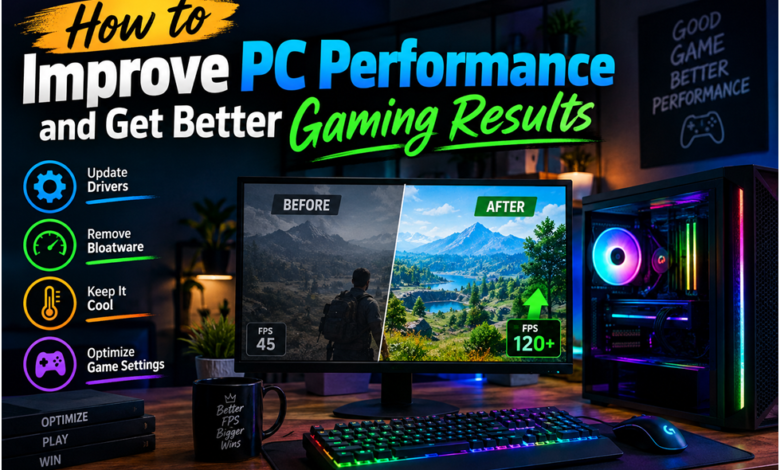
PC performance can change over time, especially when a computer is used regularly for gaming, work, and other demanding tasks. Slow performance, inconsistent frame rates, or unexpected drops can make even a capable system feel less responsive. Before spending money on new hardware, it is worth checking the software, hardware balance, and actual gaming performance.
Three useful areas to consider are update drivers, checking your system with a bottleneck calculator, and performing an FPS test. Together, these steps can give you a clearer idea of how your PC is performing and where improvements may be possible.
Keep Your System Updated
One of the first things to check when troubleshooting PC performance is whether your hardware drivers are current. Drivers help Windows communicate with components such as graphics cards, processors, network adapters, and other hardware.
Outdated drivers can sometimes lead to compatibility problems, reduced performance, or unexpected issues with newer games and applications. For this reason, users should regularly update drivers when suitable updates are available.
Manually checking every hardware manufacturer’s website can take time. A driver management utility such as IObit Driver Booster can make this process easier by scanning the system and identifying drivers that may need an update. Keeping drivers maintained can provide a better foundation for gaming and everyday PC use.
However, driver updates should be installed carefully. It is a good practice to use trusted software and create a system restore point before making significant changes. This gives you an additional recovery option if an update causes an unexpected compatibility issue.
Understand Hardware Limitations
Sometimes updating software does not solve a performance problem because the limitation comes from the hardware itself. A gaming computer relies on several components working together, particularly the CPU and GPU.
A bottleneck calculator can help users understand whether their hardware combination may have a significant performance imbalance. For example, a high-end graphics card paired with an older processor may not deliver the performance that the graphics card is capable of achieving in certain games.
The results from a bottleneck calculator should not be considered an exact measurement. Real-world performance depends on many factors, including the game being played, resolution, graphics settings, background applications, and the workload placed on individual components.
Even so, this type of calculation can be useful when planning an upgrade. Instead of replacing several components at once, users can investigate which part may be limiting performance and focus their budget on the area that could provide the most meaningful improvement.
Measure Gaming Performance With an FPS Test
After checking drivers and hardware, the next step is to see how the computer actually performs while running games. An FPS test can help measure the number of frames your system produces during gameplay.
Frames per second are important because they provide an indication of how smoothly a game is being displayed. Higher and more consistent frame rates generally result in a more responsive gaming experience. However, the highest possible number is not always the most important factor. Consistency can be just as valuable.
For browser-based entertainment, such as games at Uptown Aces Casino, checking how smoothly animations run can also help you assess the overall experience, although loading times and connection stability matter too.
When performing an FPS test, try to use the same game, location, resolution, and graphics settings when comparing results. Changing multiple settings between tests can make it difficult to determine what actually improved performance.
It can also be useful to test during a demanding section of a game rather than only checking performance in an easy scene. This gives you a better understanding of how the system behaves under heavier workloads.
Make Sensible Adjustments
Once you have checked your drivers, hardware balance, and gaming performance, you can make targeted adjustments. If outdated drivers appear to be an issue, updating them may be a reasonable first step. If hardware appears unbalanced, an upgrade may be worth considering.
Graphics settings can also have a noticeable effect on performance. Reducing particularly demanding options can improve frame rates without requiring a hardware upgrade. Closing unnecessary background applications can also free system resources while gaming.
It is better to make one change at a time and then run another FPS test. This makes it easier to understand which adjustment had an effect.
Final Thoughts
Improving PC gaming performance does not always mean buying expensive new components. Starting with the basics can often provide useful information about what your system needs.
Taking time to update drivers, using a bottleneck calculator to understand possible hardware limitations, and running an FPS test to measure actual gaming performance can give you a clearer picture of your computer’s capabilities.
By checking each area methodically and making changes based on actual results, you can avoid unnecessary upgrades and work toward a smoother, more reliable gaming experience.